Crop Hub
Unleash the future of crop management
All with a simple scan.

Welcome to Digitسهل , your trusted partner in transforming on-field operations. Designed for speed, simplicity, and real-world efficiency, Digitسهل reimagines fieldwork through scan-and-click interactions, bilingual navigation, and a visually intuitive design.
Dashboard
Your Farm's Pulse at a Glance

Digitسهل Dashboard gives you a powerful overview of your farm's performance — combining real-time data, visual insights, and deep traceability. It's a true responsive board — functional whether you're on a mobile, tablet, or desktop.
Daily Sales
Quick snapshot of today's sales performance to track momentum and daily revenue.
Daily Harvests
Monitor what's harvested each day to stay aligned with field activity and inventory updates.
Monthly Sales Overview
Interactive graph shows daily sales across the month—hover to view exact figures and spot trends.
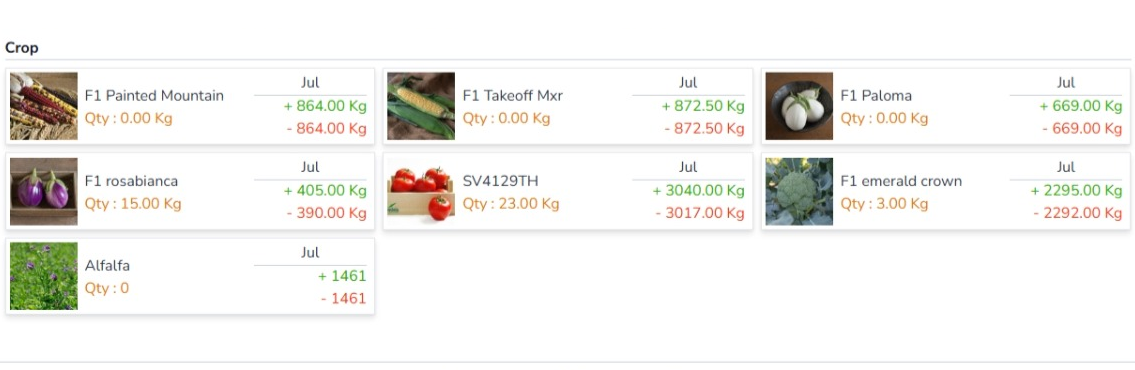
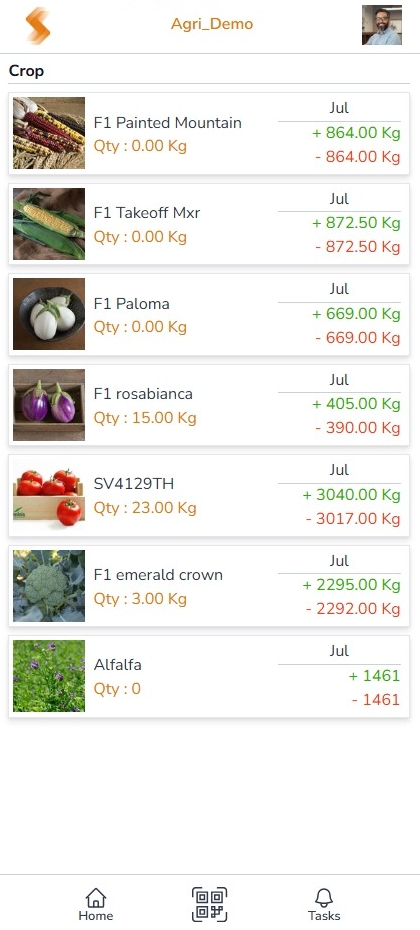
Monthly Crop Flow
Crop variety cards display current stock, total harvested, and total used—giving instant clarity on crop movement.
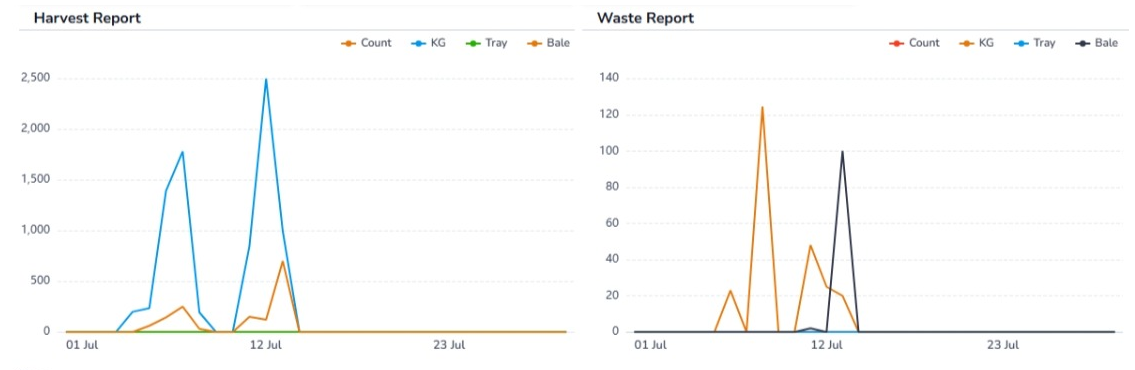
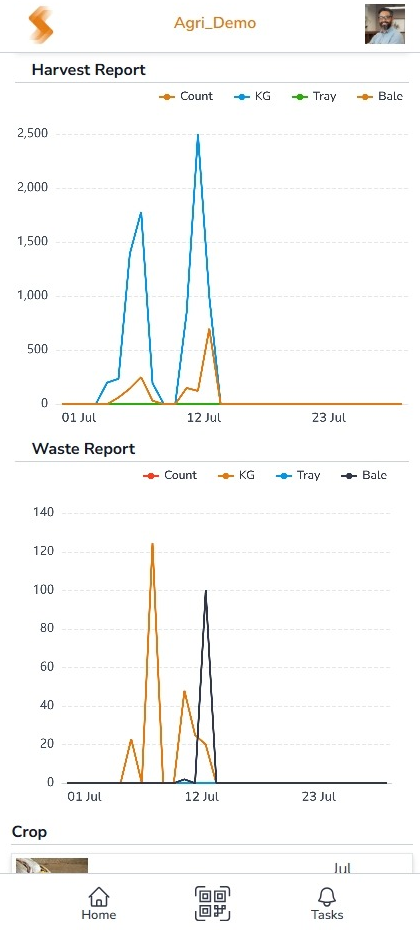
Monthly Harvest & Waste Charts
Visualize total harvests vs. waste across the month—helping you reduce loss and improve planning.
Crop Care Strategy
From Seed to Success
From the moment your crop is planted, every decision matters whether - it's irrigation or fertigation, pruning or harvesting, or any other care activity. Each step plays a vital role in shaping the health, productivity, and success of your crop throughout its life cycle.
You can choose from three Smart Strategy modes:
-
Scheduled Approach:
Predefined tasks and timelines that automate your crop care routine.
-
Manual Approach:
On-demand task execution, giving you full control to act when needed.
-
Hybrid Mode:
A mix of scheduled and manual operations, offering flexibility with structure.
Scheduled
Define your crop schedule: No more calendars or whiteboards. Just set it once, Digitسهل will handle the rest by showing tasks when due, tracking completions, and flagging anything missed.
Simple, smart, and stress-free.
Manual
Record operations in real time: With a quick scan, a simple selection, and a single click. Digitسهل can capture the moment with a photo and keep your records.
Accurate, visual, & up to date
Hybrid
Enable both scheduled and manual modes together for the full flexibility of Digitسهل.
Crop Life Cycle
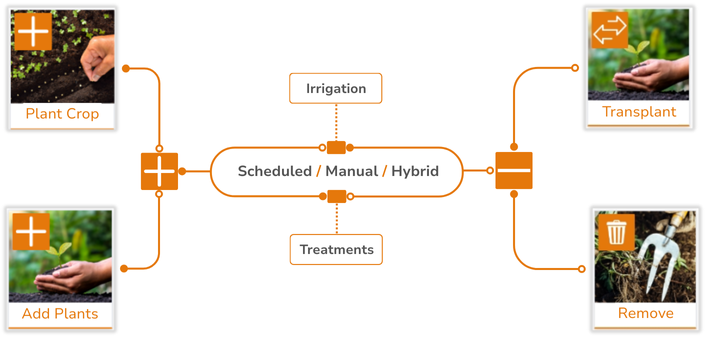
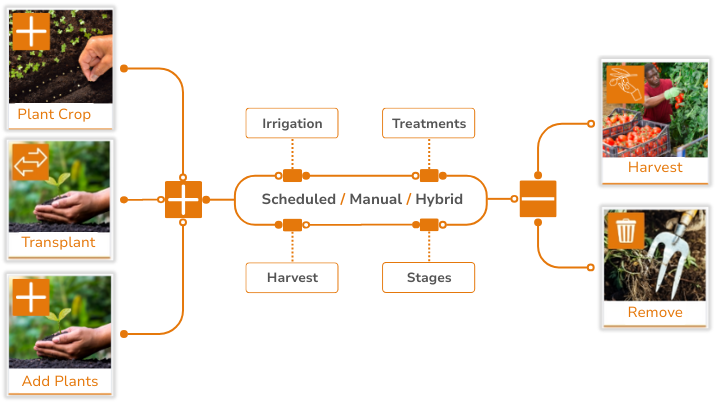
Flexible and intelligent life cycles tailored for Nursery and Crop Areas
Crop Area Nursery
Life cycle runs from seeding to Transplant or end-of-life.
Crop Area Regular
Life cycle runs from seeding or transplanting to harvest or end-of-life.
Digitسهل Features
Your complete map to smarter farming operations
Foundation & Setup
Operations & Management
Crop Inventory
Know your stock, down to the decimal
Digitسهل tracks every item and every kilogram—up to the tenth—in real time. Inventory is managed at the crop variety level, giving you instant access to accurate stock data whenever you need it.
The Inventory module manages all types of inventory activities, including harvests, sales, waste, and dispatches.
Core Process
- Access Inventory: From the home page, click on Inventory.
- View Summary: Instantly see your current inventory across all crop varieties.
Smart Integration
- Drill-down transparency: Investigate individual transactions with full source and destination context.
- Responsive anywhere: The inventory board is accessible and fully functional across mobile, tablet, and desktop.
Smart Tips
- Check inventory regularly to stay ahead of demand, plan sales, and reduce waste.
- Use drill-down views to analyse crop movement and performance across operations.
Crop Areas
Foundation setup for smart farming
Crop Areas form the structural backbone of your farm configuration inside Digitسهل. Managed by the Application Admin, they organise every field activity and data point you'll capture.
Core Attributes
- Area Type: Define whether the area is open field, greenhouse, or indoor.
- Plant Capacity: Specify the total number of plants the area can support.
- Nursery Flag: Mark the area as a nursery when applicable.
- Photo Attachment: Upload a real image for quick visual identification.
Smart Integration
- QR-driven workflows: Assign a Digitسهل QR code to unlock scan-and-manage operations for the area.
- Nursery transfers: When the nursery flag is enabled, seedlings can be transplanted into production areas with full traceability.
Smart Tips
- Dedicate each area to a single crop type for accurate tracking and task management.
- Define each irrigation valve as its own crop area for clarity and precise control.
Crop Media
Defining the growing environment
The Crop Media module lets your admin define the growing substrates that power your farm—tailored to both conventional and hydroponic setups.
Core Attributes
- Crop Method: Specify whether the media supports conventional or hydroponic farming to drive the right logic.
- Bilingual naming: Capture English and Arabic names so teams can recognise media instantly.
- Photo attachment: Upload a real-world image so technicians can visually confirm the media in the field.
Smart Integration
- Model awareness: Defining media types is how Digitسهل understands your agritech model and tunes automations accordingly.
- Precision alignment: Workflows, tasks, and future AI guidance adapt to the operational needs of each media type.
Smart Tips
- Using hybrid systems? Define media like cocopeat with the method set to conventional so irrigation and fertigation flows stay aligned.
Assign Crop Media to Crop Area
Smart linking for smarter control
Connect each Crop Area with the right media so Digitسهل can enforce accurate operations and data integrity.
Core Process
- Scan or select: Scan the Crop Area QR or choose it from the area list.
- Launch wizard: Use the Operations → Add Media option to open the guided two-step setup.
- Pick media: Choose from visual media cards that reflect your predefined catalog.
- Add context: Record an optional description and capture a photo of the configuration.
Smart Integration
- Crop-safe: Media assignment is only available when no active crop is present, guarding against mid-cycle changes.
- Context-aware tasks: Once linked, Digitسهل only surfaces media-relevant operations for that area.
Smart Tips
- Plan media assignments early—these choices control downstream task logic and automations.
- Use photos to document setups for training and future reference.
Crop Area Treatments
Preparing each area to grow
Ensure every crop area is ready before seeding with treatment workflows guided by the assigned media.
Core Process
- Scan or select: Access the crop area by QR code or from the area list.
- Launch wizard: Open Operations and pick a treatment to start the two-step flow.
- Choose treatment: Smart suggestions appear based on the media linked to the area.
- Add details: Optional notes and photos keep the preparation process documented.
Smart Integration
- Media-aware: Hydroponic areas unlock media-specific actions such as treatment or replacement.
- Rule enforcement: Only valid actions appear: tilling is blocked for hydroponics, and soil treatments lock after seeding in conventional setups.
Smart Tips
- Review available treatments beforehand to stay aligned with media-specific guidance.
- Capture photos for quality control and knowledge sharing across the team.
Media Replacement
Refreshing the root of growth
Swap out growing media at the right time to keep hydroponic systems efficient and fully traceable.
Core Process
- Scan or select: Open the Crop Area via QR or choose it from the list.
- Launch wizard: Use Operations → Replace Media to start the guided two-step workflow.
- Select media: Pick the new media from your predefined catalog.
- Add details: Capture optional notes and photos to document the change.
Smart Integration
- Crop-safe: Replacements are available only when no crop is active, protecting data accuracy.
- Operational integrity: Digitسهل ensures media updates happen at the appropriate lifecycle stage.
Smart Tips
- Plan replacements during crop-free windows to minimise disruption.
- Photograph each replacement for maintenance history and quality checks.
Plant Crop
Starting the journey of growth
Move seamlessly from preparation into planting with a guided workflow that captures crop selection, varieties, and plant counts.
Core Process
- Scan or select: Open the Crop Area via QR or from the list.
- Launch wizard: Choose Plant Crop to start the three-step wizard.
- Select crop: Pick from predefined crop categories such as tomato, corn, or eggplant.
- Select variety: Digitسهل filters varieties based on your chosen crop category.
- Add details: Confirm the plant count, add optional notes and photos, then submit.
Smart Integration
- Prerequisites: Plant Crop appears only when media has been assigned to the area.
- Capacity guardrails: Plant counts cannot exceed the capacity defined for the area.
Smart Tips
- Nursery-first crops should be planted in designated nursery areas before transplanting.
- Direct-plant crops such as melon can go straight into regular crop areas.
Schedule Treatment
Automate crop care with precision
Automate predefined treatment plans for each crop category, from daily sprays to annual applications, all within controlled time windows.
Core Process
- Scan or select: Open the Crop Area using QR code or the area list.
- Launch wizard: Choose Schedule Treatment to open the two-step flow.
- Select treatment: Digitسهل displays treatments relevant to the current crop.
- Define schedule: Set timing, frequency, and time-of-day windows to match your protocols.
Smart Integration
- Flexible cadence: Provide either an end date or total number of treatments—Digitسهل calculates the rest.
- Time-window control: Tasks surface only inside the window you define and are auto-marked as missed using Smart rules.
Smart Tips
- Plan ahead and let Digitسهل track execution for you.
- Refer to the appendix for detailed missed-task rules.
Schedule Irrigation
Keep irrigation timely and as needed
Schedule irrigation with the same flexibility as treatments—multiple times a day, weekly rotations, or custom time windows tailored to your crops.
Core Process
- Scan or select: Access the Crop Area by QR code or from the list.
- Launch wizard: Choose Schedule Irrigation to open the scheduling form.
- Define schedule: Set duration, timing, and frequency to match your irrigation strategy.
Smart Integration
- Flexible cadence: Choose end dates or irrigation counts and Digitسهل fills in the plan.
- Window aware: Tasks appear only in the time slots you define and follow the same missed-task logic as treatments.
Smart Tips
- Set accurate durations to prevent over- or under-watering—Digitسهل uses this to optimise usage.
Transplant
Move crops from care to growth
Digitise the shift from nursery care to production areas while keeping plant counts and capacities in sync.
Core Process
- Scan source: Access the nursery Crop Area via QR or list selection.
- Launch wizard: Choose Transplant within Operations to start the guided flow.
- Select destination: Scan or select the target Crop Area.
- Provide details: Enter the number of plants, add optional notes and photos, then confirm.
Smart Integration
- Dual tracking: Digitسهل records both transplant-out and transplant-in events for full lifecycle visibility.
- Guardrails: Transplants only occur from nursery to regular areas, and counts respect source and destination limits.
Smart Tips
- Schedule transplants during low-stress windows to protect young plants.
Perform Treatment
Apply crop care with simplicity and control
Execute treatments manually or via scheduled tasks while keeping every action documented for traceability.
Core Process
- Scan or select: Open the Crop Area from QR or the list.
- Scheduled tasks: Pending treatments surface automatically—open, add notes or photos, and submit.
- Manual mode: Choose Perform Treatment to pick a treatment, add context, and record it instantly.
Smart Integration
- Time-aware: Scheduled tasks appear only within their defined windows.
- Audit ready: Missed treatments are auto-flagged using the same Smart rules as scheduling.
Smart Tips
- Use manual mode for unexpected needs; scheduled mode keeps recurring work consistent.
Perform Irrigation
Smart watering, manual or scheduled
Log irrigation on demand or complete scheduled tasks, keeping water usage and execution records aligned.
Core Process
- Scan or select: Access the Crop Area from QR code or the list.
- Scheduled tasks: Pending irrigation tasks appear automatically—confirm duration, add context, and submit.
- Manual mode: Select Perform Irrigation, enter the duration, optionally add notes or photos, and submit.
Smart Integration
- Window aware: Scheduled irrigation appears only inside defined time windows.
- Rule aligned: Missed irrigation follows the same Smart rules used for treatments.
Smart Tips
- Automate routine watering with schedules; switch to manual mode for in-field adjustments.
Staging
Track crop progress step by step
Manage growth stages with controlled progression so every transition is logged and validated.
Core Process
- Scan or select: Open the Crop Area via QR code or the list.
- Launch wizard: Choose Update Stage from the operations modal.
- Advance stage: Digitسهل highlights the next stage in sequence—confirm to progress.
- Add details: Optionally add notes or photos before submitting.
Smart Integration
- Controlled order: Progression follows the sequence defined by the Farm Admin—no skips or reversals.
Smart Tips
- Update stages promptly to connect irrigation, fertigation, and analysis back to the right growth phase.
Remove Plants
Keep your crop count accurate
Log plant losses in real time so counts stay aligned with reality and downstream analytics remain precise.
Core Process
- Scan or select: Access the Crop Area through QR or the list.
- Start removal: From Operations choose Remove Plant.
- Add details: Enter the number of plants removed and optionally add notes or photos.
Smart Integration
- Auto-updates: Digitسهل logs each removal and updates plant counts instantly.
Smart Tips
- Update counts regularly to improve health analysis and yield forecasting.
Add Plants
Maintain accurate plant counts
Record late additions or corrections so plant inventory mirrors what’s in the field.
Core Process
- Scan or select: Open the Crop Area using QR or from the list.
- Start addition: Choose Add Plants from the operations modal.
- Add details: Enter the number of plants added with optional notes and photos.
Smart Integration
- Inventory aware: Digitسهل updates counts instantly but enforces the area's maximum capacity.
Smart Tips
- Use for corrections or late seedling additions so historical records stay accurate.
Add Photo
Capture visual insights instantly
Document crop conditions, growth, and issues with a single tap to build a visual timeline.
Core Process
- Scan or select: Access the Crop Area via QR code or list.
- Choose Add Photo: Launch the capture flow from the operations modal.
- Capture & review: Take the photo, review it, retake if needed, then submit.
Smart Integration
- Visual history: Digitسهل stores each image to enrich the Crop Area timeline.
Smart Tips
- Add photos regularly to provide context alongside your operational records.
Remove Crop
Close one cycle, ready the next
Safely retire a crop while keeping its full history intact and freeing the area for future use.
Core Process
- Scan or select: Open the Crop Area via QR or the list.
- Choose remove: Select Remove Crop from the operations modal.
- Confirm action: Review the confirmation prompt and submit to finalise.
Smart Integration
- Protected workflow: Digitسهل requests explicit consent to prevent accidental deletion.
- History preserved: The area unlocks for new crops while past records remain accessible.
Smart Tips
- Review previous crop records for learnings before starting the next cycle.
Harvest
Track what you grow, accurately
Map every harvest to your inventory with support for counts, weight, bales, and trays.
Core Process
- Scan or select: Access the Crop Area via QR or list.
- Choose Harvest: Select Harvest from the operations modal.
- Add details: Enter the harvested quantity, add optional notes and photos, then submit.
Smart Integration
- Type aware: Full-plant harvests adjust plant counts; partial harvests leave counts unchanged.
- Inventory sync: Harvest data feeds inventory automatically for accurate stock tracking.
Smart Tips
- Photograph harvest batches to document quality and yield.
Sales
Turn your harvest into revenue
Convert harvested inventory into sales in just a few taps with traceability across every item.
Core Process
- Open Sales: From the home screen, navigate to Sales to view available inventory.
- Select item: Choose what you're selling—count, weight, trays, or bales.
- Apply pricing: Enter discounts if applicable and confirm total price.
- Add info: Optional description and photos enhance the record.
Smart Integration
- Inventory linked: Every sale updates stock levels in real time.
- Full traceability: Logs capture item, quantity, price, and timestamp for auditing.
Smart Tips
- Capture photos for packaging and quality assurance.
- Review sales history to refine pricing strategies.
Dispatch
Send crops to internal destinations
Track produce sent to the family kitchen or other non-commercial endpoints with the same clarity as sales.
Core Process
- Open Dispatch: From the home screen, tap Dispatch to view inventory.
- Select item: Choose what you're dispatching.
- Add info: Enter quantity with optional notes and photos, then submit.
Smart Integration
- Inventory guardrails: Digitسهل prevents dispatches beyond available stock.
- Transparent history: Records include item, quantity, and timestamp for internal audits.
Smart Tips
- Use dispatch logs to understand internal consumption and plan planting cycles.
- Photos add useful context for packaging and quality.
Waste
Track what’s lost to improve what’s grown
Log spoilage, damage, or quality downgrades to keep inventory accurate and insights actionable.
Core Process
- Open Waste: From the home screen, tap Waste to view inventory.
- Select item: Choose which item is being written off.
- Add info: Enter quantity with optional notes and photos, then submit.
Smart Integration
- Inventory guardrails: Digitسهل blocks waste entries beyond available stock.
- Complete history: Waste events stay linked to inventory for clear loss analysis.
Smart Tips
- Analyse waste trends to refine handling and reduce future losses.
- Photos help pinpoint causes and support decision-making.
Appendix
Schedule rules and default stages
Schedule Rules
| Schedule type | Marked missed when… |
|---|---|
| Multiple times a day | After the scheduled end time |
| Daily | After the scheduled end time |
| Weekly | After the scheduled end time and 2 days from the scheduled date |
| Monthly | After the scheduled end time and 1 week from the scheduled date |
Default Stages
| Order | Stage |
|---|---|
| 0 | Planting |
| 1 | Growth |
| 2 | Flowering |
| 3 | Fruiting |
| 4 | Harvesting |